Getting Started: Deploying Your First AI Employee in 15 Minutes

Here's the truth that surprises most business owners: deploying an AI employee is easier than setting up a new email account. No technical skills required. No IT department needed. No lengthy onboarding process. In about 15 minutes, you can have an AI employee answering calls, managing emails, and scheduling appointments for your business.
This guide walks you through the entire process, step by step. By the end, you'll have your first AI employee live and working.
Step 1: Sign Up and Choose Your AI Employee (2 Minutes)
Head to AIEmployees.us and create your account. You'll need just an email address and your business name to get started.
Next, choose your AI employee. For most businesses, we recommend starting with Emily, our front desk specialist. She's designed for customer-facing operations: phone calls, emails, scheduling, and customer inquiries. If you have specific needs beyond front desk operations, our team can help you choose the right AI employee for your use case.
Once you've selected Emily, you'll be taken to the configuration dashboard. Don't worry — it's straightforward, and we'll walk through each section.
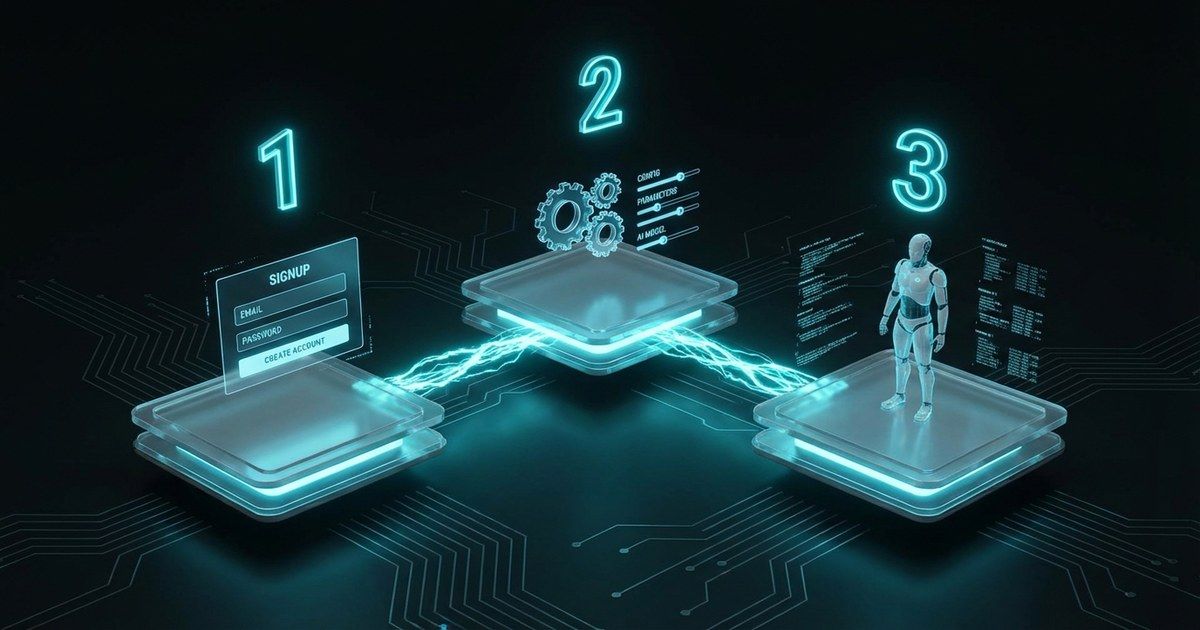
Step 2: Configure Your Business Profile (5 Minutes)
This is where you teach Emily about your business. The more information you provide, the better she'll represent you to customers. Here's what to configure:
Business Information
- Business name, address, and phone number
- Business hours (including different hours for different days)
- Website URL and social media links
- Brief description of your business (2-3 sentences)
Services & Pricing
List your main services and their prices. Emily uses this information to answer pricing questions and help customers choose the right service. You can be as detailed or general as you'd like — for example, “Haircut: $35-65 depending on stylist” works perfectly.
FAQs
Add your most commonly asked questions and the answers you'd want given. Think about the questions your receptionist or you answer multiple times a day: “Do you accept insurance?” “Is there parking available?” “What's your cancellation policy?” Emily will use these to provide accurate, consistent answers.
Tone & Style
Choose how Emily communicates. Options range from professional and formal to warm and conversational. You can also set specific greetings: “Thank you for calling [Your Business Name], this is Emily. How can I help you today?”
Pro tip: Start with your top 10 FAQs and your core services. You can always add more later. Emily learns and improves over time, so don't feel pressured to be exhaustive on day one.
Step 3: Connect Your Tools (5 Minutes)
Emily becomes exponentially more powerful when connected to your existing tools. Here are the key integrations:
Phone System
Connect your business phone number so Emily can answer calls. This works through simple call forwarding — no need to change your phone number or provider. You set the rules: Emily answers all calls, or only when your team is unavailable, or only after hours.
Connect your business email (Gmail, Outlook, or any IMAP-compatible provider). Emily will monitor incoming emails and manage responses based on the rules you set. You maintain full control — Emily can draft responses for your approval or handle routine inquiries autonomously.
Calendar
Sync with Google Calendar, Outlook Calendar, or Calendly. Emily will book appointments directly into your calendar, check availability in real-time, and send confirmations and reminders to clients.
CRM (Optional but Recommended)
Connect your CRM (Salesforce, HubSpot, Zoho, or others) to give Emily access to customer information. She'll log every interaction, update customer profiles, and ensure your sales pipeline stays current.
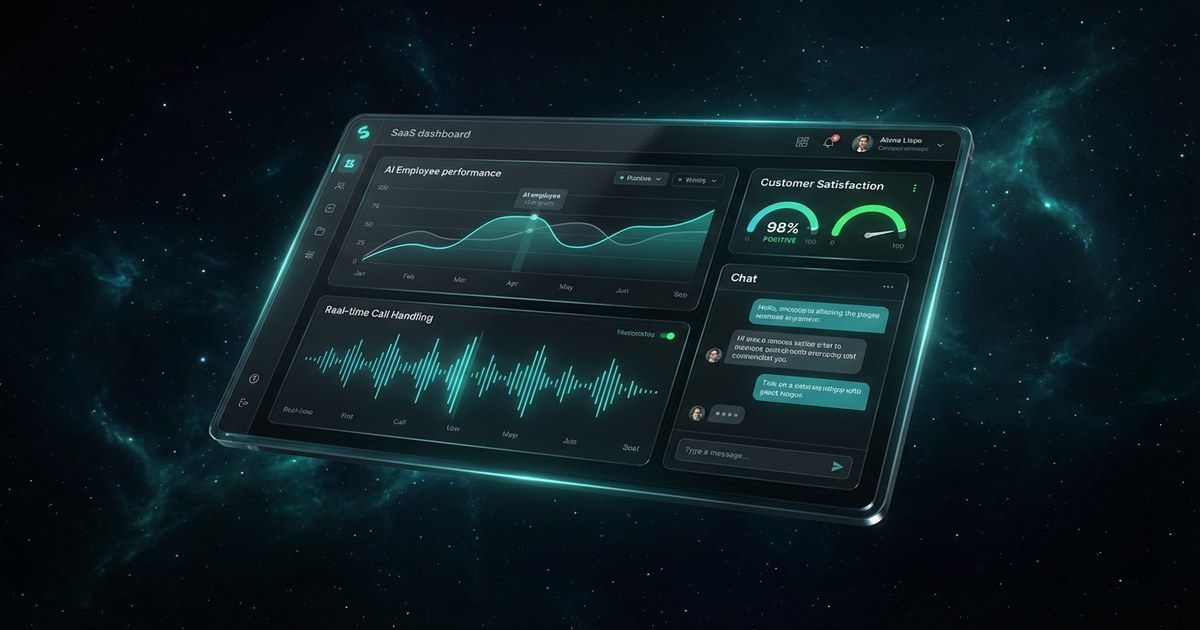
Step 4: Launch and Monitor (3 Minutes)
Review your settings, click “Launch,” and Emily goes live. That's it. She'll immediately start handling incoming communications based on your configuration.
Your dashboard provides real-time visibility into everything Emily does:
- Live call log with recordings and transcripts
- Email conversations and responses
- Appointments booked and managed
- Customer satisfaction scores
- Daily and weekly performance reports
What Happens Next
The moment Emily goes live, she starts working. If a customer calls your business, Emily answers within two rings. If an email arrives, Emily processes it within seconds. If someone wants to book an appointment, Emily checks your calendar and confirms the booking.
You'll receive a notification for any interaction that requires your attention — Emily knows when to handle things autonomously and when to loop you in. For the first few days, we recommend keeping notifications on so you can see exactly how Emily handles each interaction.
Tips for Your First Week
To get the most out of Emily from day one, follow these tips:
Monitor Your Dashboard Daily
Spend 10 minutes each morning reviewing Emily's activity from the previous day. Check call transcripts, email responses, and booking confirmations. This helps you understand how Emily represents your business and identify any adjustments needed.
Review Conversations
Listen to a few call recordings and read through email threads. You'll quickly see that Emily handles the vast majority of interactions perfectly. For the rare edge case, you can add specific instructions to Emily's knowledge base to improve future responses.
Fine-Tune Responses
If you notice Emily giving an answer you'd phrase differently, update the relevant FAQ or add a new one. Emily adapts immediately — no retraining period required. Most businesses do 3-5 small tweaks in the first week and then rarely need to make changes.
Tell Your Team
Make sure your staff knows about Emily so they can work together effectively. Emily can transfer calls to specific team members, escalate urgent issues, and hand off conversations seamlessly. The more your team understands Emily's capabilities, the better the collaboration.
Track Your Results
After one week, check your dashboard analytics. Compare your missed call rate, response times, and appointment bookings to your pre-Emily numbers. Most businesses see dramatic improvements immediately, and the data helps you quantify the impact for your team and stakeholders.
Ready to see what Emily can do for your business? The setup takes 15 minutes, and you can start seeing results today.
Deploy Your First AI Employee Now
15 minutes to setup. Zero technical skills required. Start handling calls, emails, and appointments with AI today.
Fill Out the Form →Related notes.

Small Business Automation in Texas: A 2026 Guide
The complete guide to automating your Texas small business.

Meet Emily: AI Receptionist That Answers Calls 24/7
Meet Emily, the AI receptionist for small businesses. She answers calls, texts missed callers, books appointments, and keeps leads moving after hours.
AI Receptionist for Restaurants: Automate Orders 24/7
AI receptionists help restaurants serve more customers without adding staff.